
QR codes & labels
How to add a logo to a QR code without breaking it
Choose error correction, logo size, contrast, and verification steps that preserve readability.
Quick answer
A logo removes part of a QR code’s data pattern. The safest starting point is a plain dark code on white, a short destination, a small centered logo, and a clear border. Strong error correction helps with damage; its percentage is not a promise that the same percentage of the picture may be covered.
Step by step
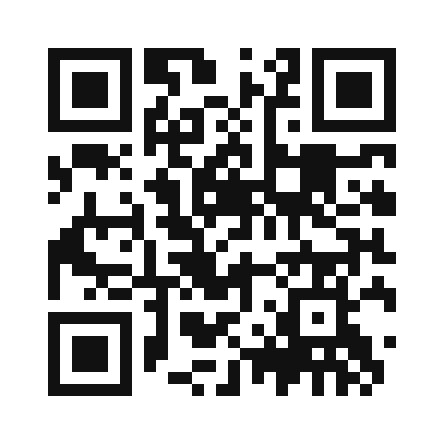
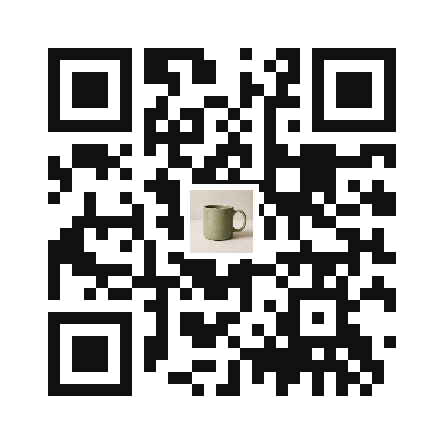
In Generate, enter https://example.com/shop, create a plain code and verify it. Add a small image only after that succeeds; the tool selects its logo-oriented correction setting automatically. Use Clear logo to isolate a failure, then Generate again. In Decode, open the three downloadable QR samples separately and compare their returned text. None requires visiting the destination.
Common mistakes
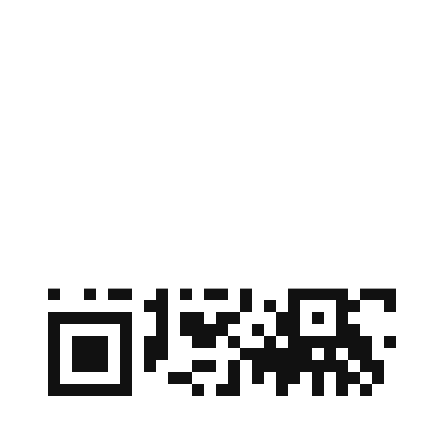
The plain and small-logo samples decode to the same destination with ZXing. The damaged sample deliberately erases the upper part and does not decode in that check. These are controlled software examples, not proof that every logo, camera, printer or size works. Keep corner markers and the blank border clear; do not stretch or crop the exported square.
Completion check
Check the entire decoded address, not just the domain. Repeat with the actual long URL if yours includes tracking parameters: fitting more text into the same size makes individual squares smaller. Download the final file and test its real printed size on the devices and lighting your audience uses. If it is unreliable, remove the logo or simplify the destination instead of enlarging a blurred screenshot.
Make the right call
Build a baseline before adding your brand
Use the three samples below as a controlled comparison, not as a logo-size prescription. A QR symbol contains data and structural patterns; covering a similar-looking area can have different effects depending on the exact content and placement.
| Check | Example or action | How to judge the result |
|---|---|---|
| Plain baseline | Decode qr-plain.png and record https://example.com/shop. | Check the complete path, not just “example.com”. This establishes the correct expected text. |
| Small centered logo | Decode qr-small-logo.png, then generate your own code using the same destination. | A matching result proves this file can be decoded by this software. It does not certify your different logo or physical print. |
| Deliberately damaged sample | Try qr-damaged.png and compare it with the working versions. | Do not interpret stronger correction as permission to cover corner patterns or remove the clear border. Remove the logo before changing several other settings. |
Worked example
Boundarysline sample materials use fictional data. Download them to follow the steps; they are not real customer records or certified outputs.
| https://example.com/shop | qr-plain.png | qr-small-logo.png |
|---|